
Navigation Menu
The Main navigation menu in Proventeq365 provides quick access to key modules for monitoring, reporting, self-service, and governance management.
The Main navigation menu in Proventeq365 provides quick access to key modules for monitoring, reporting, self-service, and governance management across your Microsoft 365 environment.
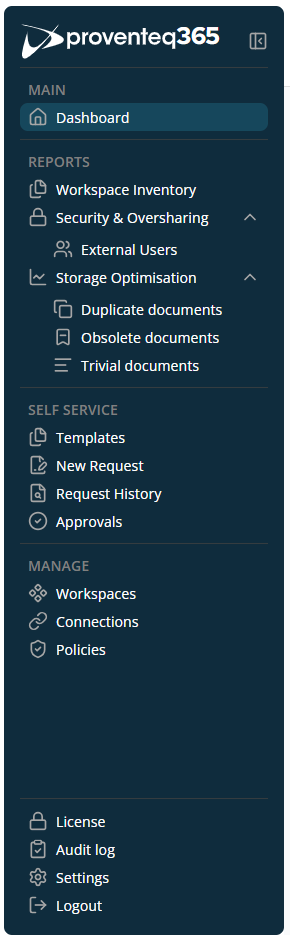
This menu includes the following modules:
Main — Contains the following submenu:
- Dashboard — Opens the application's dashboard screen. This screen shows consolidated insights and key metrics related to governance, security, and storage across your environment.
Reports — Contains the following submenus:
- Workspace Inventory — Opens the Workspace Inventory screen showing an overview of sites added to the workspace.
- Security & Oversharing — Opens the oversharing report screen, displaying permissions distributed over the site collection with potential security risks and content oversharing.
- External Users — Opens the report for external users who have access to organisational content.
- Storage Optimisation — Three different analysis options are available under this menu. By clicking the down arrow icon next to the ROT Analysis option, the following sub-options appear:
- Obsolete Documents — Opens the Obsolete Documents report showing outdated or unused documents.
- Duplicate Documents — Opens the Duplicate Documents report showing redundant copies of documents.
- Trivial Documents — Opens the Trivial Documents report showing low-value documents.
Self Service — Contains the following submenus:
- Templates — View available request templates.
- New Request — Create a new request using a selected template.
- Request History — Track the status and details of submitted requests.
- Approvals — Review and take action on requests awaiting approval.
Manage — Contains the following submenus:
- Workspaces — Displays a list of existing workspaces.
- Connections — Displays a list of supported external storage systems and lets you manage those connections.
- Policies — Displays a list of policies defined in the selected workspace.
Systems — Contains the following submenus:
- License — View Proventeq365 license information and re-activate the license.
- Audit Log — Review system activities for auditing and compliance purposes.
- Settings — Manage application-level configuration and preferences.
- Logout — Sign out of Proventeq365 securely.
Menu options shown in the navigation depend on the modules allocated by your license.