Container — Create User
Provision new Microsoft 365 users in a structured, automated, and governance-driven manner — captures identity, security, and organisational details through a guided workflow.
This container is used to provision new Microsoft 365 users in a structured, automated, and governance-driven manner. It simplifies user onboarding by capturing essential identity, security, and organisational details through a guided workflow.
When selected, a screen with a left-side menu opens, showing two configuration steps: Set Up the Basics and User Profile Information.
Set Up the Basics
The Set Up the Basics screen defines the initial identity and login details for a new user. It is the first step in the user provisioning process and ensures the user's account is correctly created and accessible.
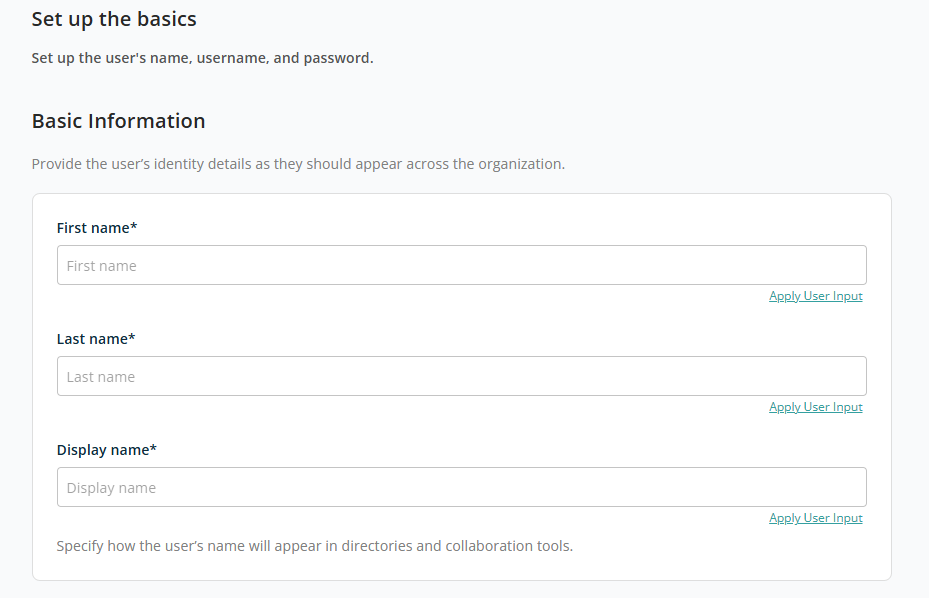
Basic Information
This section captures the user's identity details as they will appear across the organisation:
- First Name — The user's given name. Required.
- Last Name — The user's surname. Required.
- Display Name — How the user's name will appear. Required.
The Apply User Input link is available beside each field to map or reuse values from user input.
Sign-In Details
This section defines how the user will log into the system:
- User Name — A unique username in email format. Example:
firstname.lastname@yourdomain.com. - Password — Enter directly or configure using user input to generate it new every time.
- Require user to change password at first sign-in — Toggle to enforce password reset on first login. When enabled, the user must set a new password upon first access.
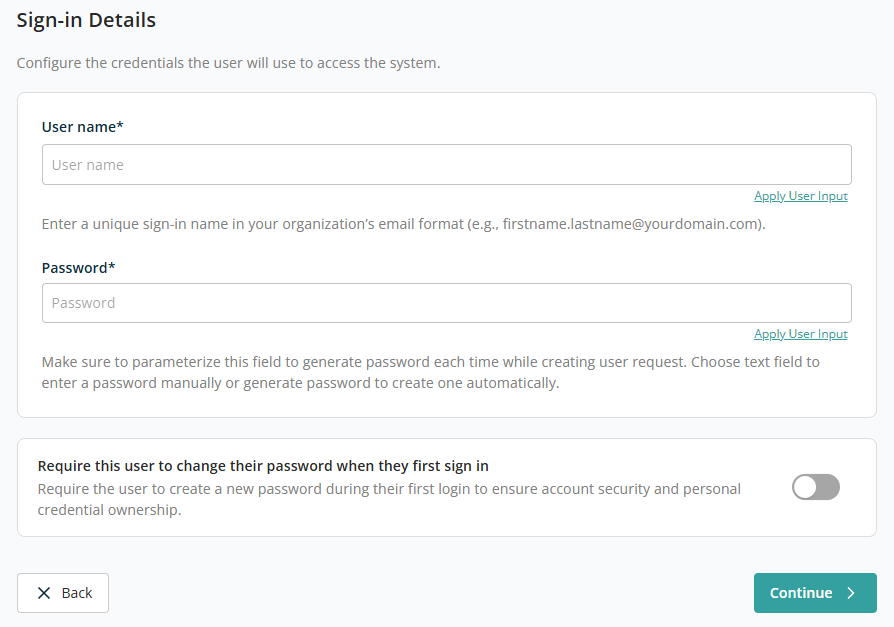
After adding all required configurations, click Continue to move on to User Profile Information.
User Profile Information
The User Profile Information screen lets you define additional details about a user, including contact information, job role, and office location. This information is used to enhance user identity, improve communication, and support organisational structure.
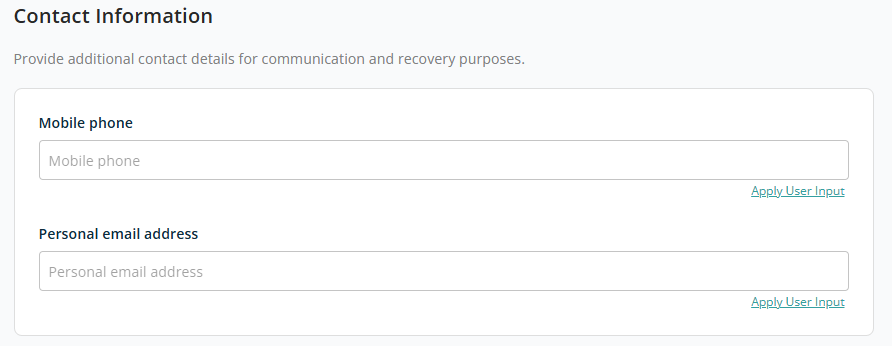
Contact Information
This section captures communication and recovery details:
- Mobile Phone — The user's mobile contact number. Commonly used for notifications, account recovery, and communication purposes.
- Personal Email Address — An alternate (non-work) email address. Commonly used for account recovery and backup communication.
Employment Details
This section defines the user's role within the organisation.
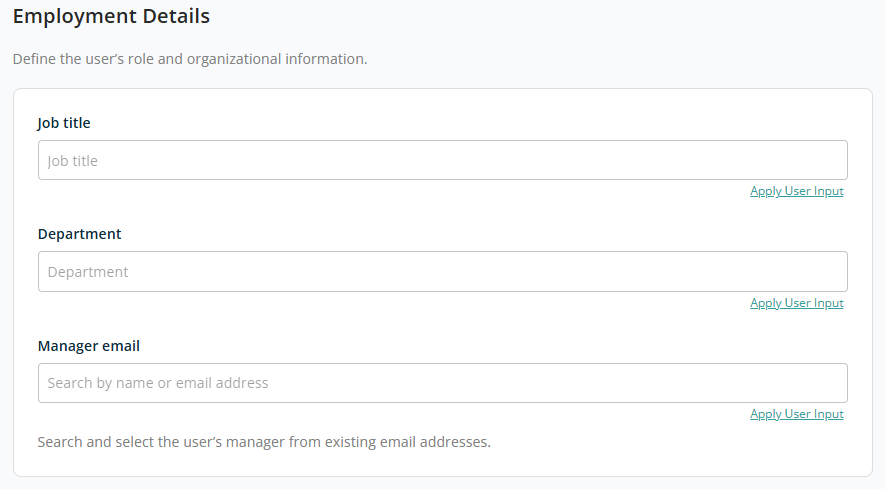
- Job Title — The user's designation.
- Department — The department the user belongs to.
- Manager Email — The user's reporting manager. You can search and choose from existing email addresses.
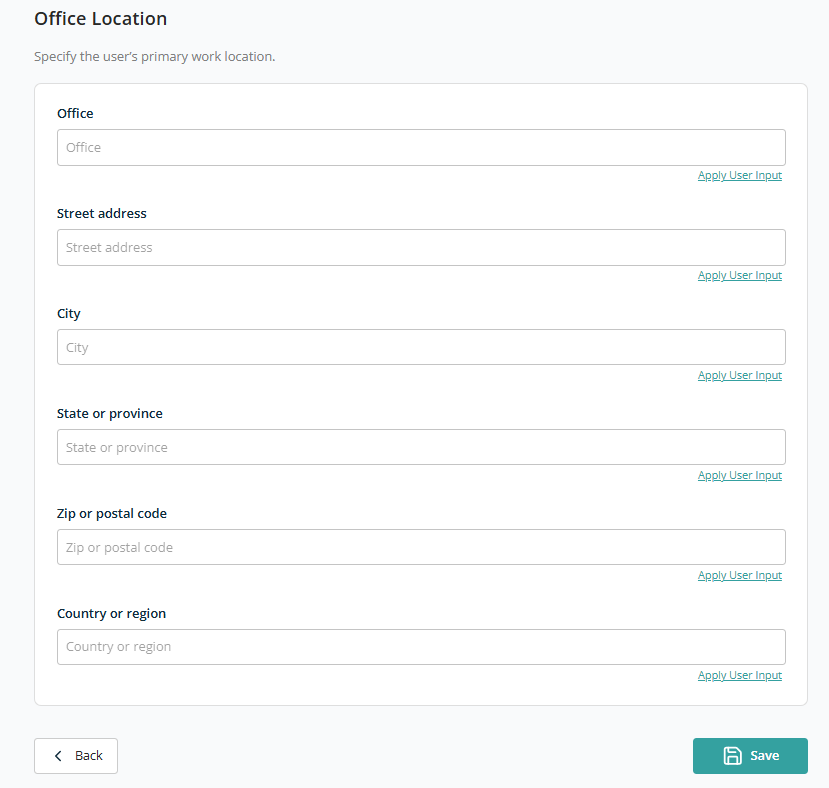
Office Location
This section defines the user's primary workplace location:
- Office — The office name or location identifier.
- Street Address — The detailed address of the office.
- City — The city where the office is located.
- State or Province — The state or region.
- Zip or Postal Code — The postal or zip code for the location.
- Country or Region — The country of the office location.
For all fields, the Apply User Input option is available to configure the field using user input so values can be reused for every new user request using this template.
After doing all configuration, click Save to add this container to the template. To discard the container, click Back to return to the first step, then click Cancel.