
Approvals
Review, approve, or reject provisioning requests pending approval before resources like sites, channels, or users are created.
The Approvals screen displays all provisioning requests that are pending approval. It allows authorised approvers to review, approve, or reject requests before the resources (sites, channels, or users) are created.
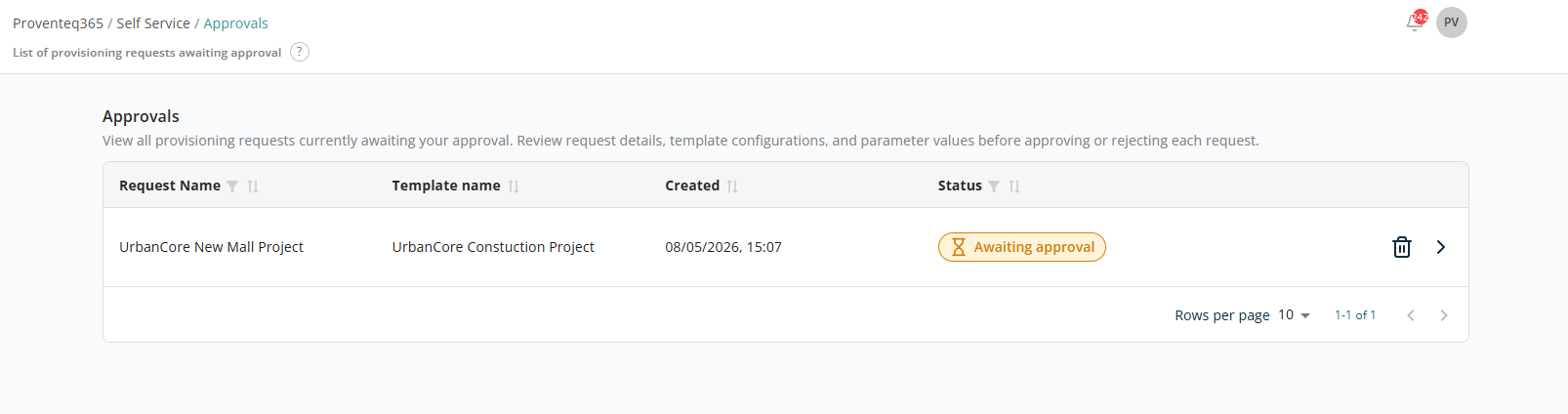
At the top of the screen, a summary indicates that the page shows requests pending approval.
Requests Table
The table lists all pending requests with the following columns:
- Request Name — The name of the provisioning request.
- Template Name — The template used to create the request.
- Created — The date and time the request was submitted.
- Status — The current state of the request. Example:
Awaiting approval. - Actions — Each request provides:
- View Details (Arrow Icon) — Open the request details to review configuration parameters and User Input values.
- Delete (Trash Icon) — Remove the request before approving it.
The table supports sorting and filtering on all columns.
At the bottom right of the table:
- Rows Per Page — 5, 10, 15, 20, 25, 30, 50, or 100. Default: 10.
- Total Record Count — Range and total record count.
- Next/Previous Navigation — Arrow icons to navigate.
Request Details
The Request Details screen provides a complete view of a provisioning request, including the selected template, user inputs, requester information, and current status — for review before approving or rejecting the request.
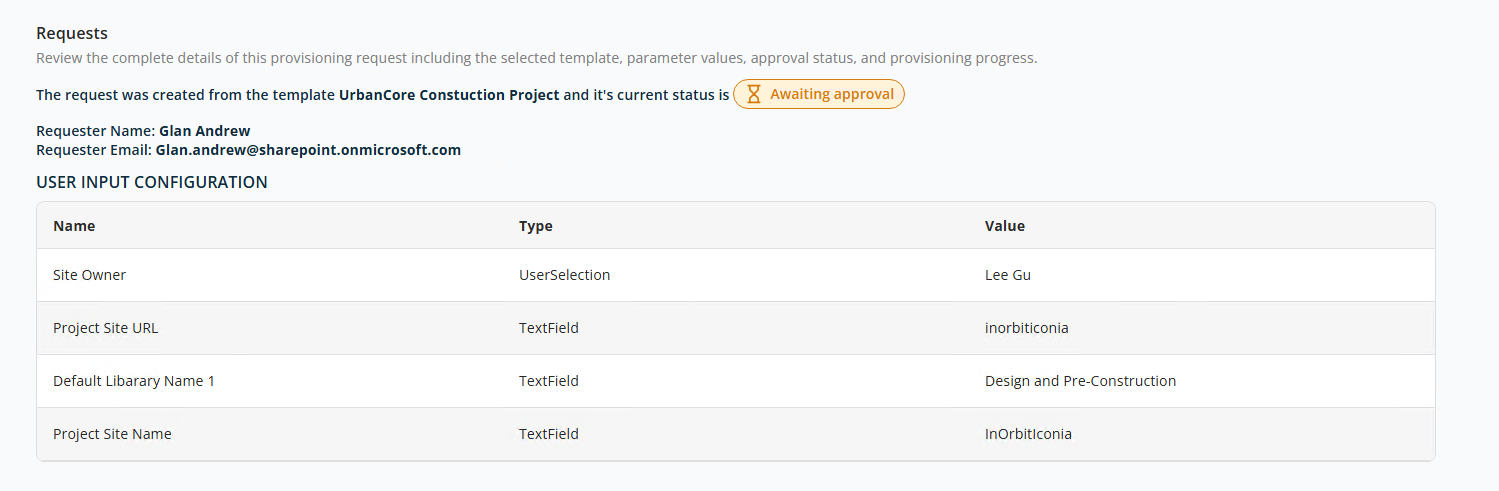
At the top of the screen, the template used to create the request is displayed with the current stage. Example: Awaiting approval.
Requester Information
- Requester Name — The name of the user who submitted the request. Example:
Glan Andrew. - Requester Email — The user's email address. Example:
Glan.andrew@sharepoint.onmicrosoft.com.
User Input Configuration
This section displays all the inputs provided during request configuration, based on the selected template:
- Name — The field name defined by the template.
- Type — The input type (e.g. TextField, UserSelection).
- Value — The value entered or selected during request creation.
At the top of the screen, two action buttons are available: Approve and Reject.
- Clicking Approve approves the request and starts the provisioning process.
- Clicking Reject rejects the request; the provisioning process does not start.
After approval, request status can be tracked from the Approvals list as well as the Request History screen.