
Security & Oversharing
Detailed view of sharing and permission-related risks. Identify overexposed content, understand who has access, and prioritise remediation by severity.
The Security & Oversharing screen provides a detailed view of sharing and permission-related risks across your Microsoft 365 environment. It helps you identify overexposed content, understand who has access, and prioritise remediation based on risk severity.
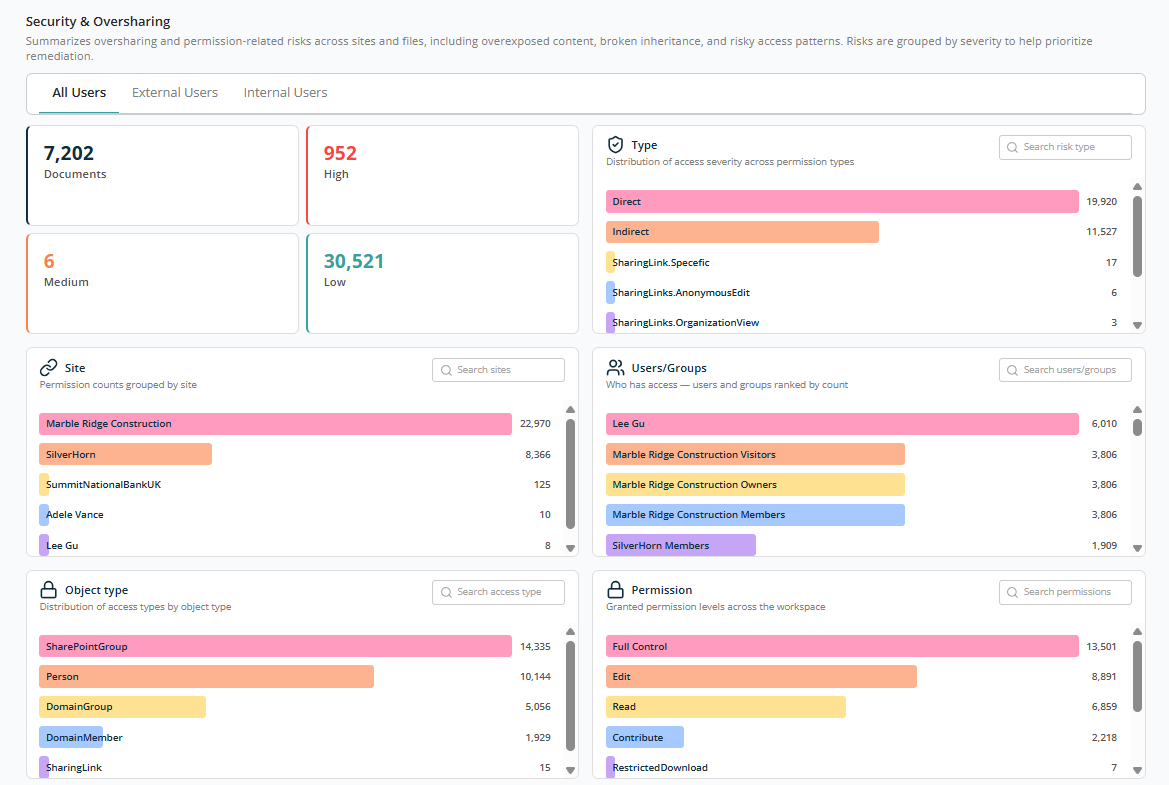
User Scope Tabs
At the top of the screen you can view the report by user category:
- All Users — Displays permission data for both internal and external users. Selected by default.
- External Users — Filters the report to show only permissions granted to users outside the organisation.
- Internal Users — Filters the report to show only permissions granted to users within the organisation.
Selecting a tab refreshes the summary cards, analysis widgets, and detail table to reflect the chosen user category.
Permission Risk Summary
The summary section shows aggregate counts across four categories, presented as interactive cards.
- Documents — Total number of documents evaluated for permission risk.
- High — Count of permissions in a document classified as high risk.
- Medium — Count of permissions in a document classified as medium risk.
- Low — Count of permissions in a document classified as low risk.
Each card is interactive and functions as a filter. Selecting a card filters the analysis widgets and the detail table accordingly, and the applied filter appears at the top of the page next to the header text Permissions.
Note: Multiple filters can be applied. They appear at the top of the page with a remove icon and can be removed individually.
Permission Analysis Widgets
Below the Permission Risk Summary, five interactive widgets display permission data across different dimensions. Each widget contains a search box and shows items ranked by affected file count. Selecting an entry in any widget filters the other widgets and the detail table to that selection.
Type
Shows permission data distributed by access type. Common values include:
- Indirect — Files accessible indirectly through group or inherited permissions.
- Direct — Files granted with explicit (direct) permissions.
- SharingLink.Specific — Files shared through a link targeted to specific people.
- SharingLinks.AnonymousEdit — Files shared through an anonymous link with edit rights.
- SharingLinks.AnonymousView — Files shared through an anonymous link with view rights.
- SharingLinks.OrganizationEdit — Files shared through an organisation-wide link with edit rights.
- SharingLinks.OrganizationView — Files shared through an organisation-wide link with view rights.
Site
Shows permission data grouped by site (SharePoint, OneDrive, or Teams). Each entry lists the site name alongside its associated file count.
Users/Groups
Shows permission data grouped by user or group, listing the number of files each principal has access to. Both individual users and SharePoint or domain groups are included.
Object Type
Shows the type of principal holding the permission:
- Person — Permissions assigned directly to individual user accounts.
- SharePointGroup — Permissions assigned to a SharePoint group.
- DomainGroup — Permissions assigned to a domain security group defined in Active Directory.
- DomainMember — Permissions assigned to a domain member account.
- SharingLink — Permissions granted through a sharing link.
Permission
Shows the permission level granted across files:
- Edit — Users can view, add, update, and delete items.
- Full Control — Users have complete control of the site or item.
- Read — Users can only view items.
- Contribute — Users can view, add, and update items.
- Restricted View — Users can view pages and documents but cannot download.
Table View
When you switch to Table view, the report displays data as shown below.
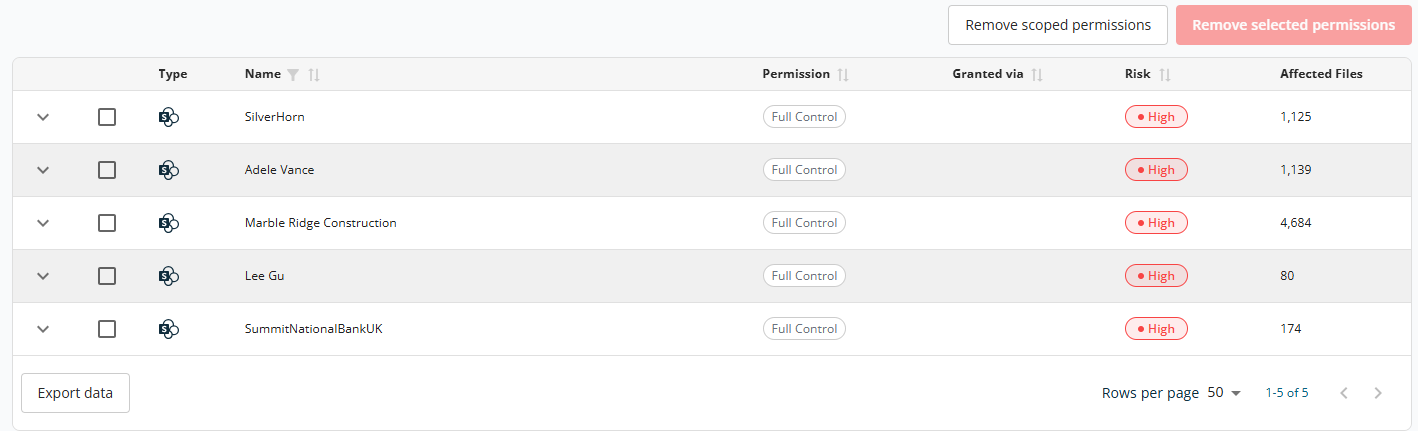
The table at the bottom of the screen lists permission assignments that match the currently applied filters. Columns:
- Expand (chevron) — Expands the row to show the specific permissions applied to the item.
- Checkbox — Selects one or more rows for bulk action via Remove selected permissions.
- Type icon — Visual indicator of the principal type (user, group, sharing link, etc.).
- Name — Name of the site, user, or group associated with the permission.
- Permission — The permission level granted (for example, Full Control, Edit, or Read).
- Granted via — How the permission was granted — directly, through a group, or by inheritance.
- Risk — Severity rating for the permission (High, Medium, or Low), colour-coded.
- Affected Files — The number of files impacted by this permission assignment.
The table supports sorting on Name, Permission, Granted via, and Risk. A filter is available for the Name column.
Two action buttons are displayed above the table for bulk remediation:
- Remove scoped permissions — Removes all permissions matching the currently applied filters (scope). Use this to remediate an entire category of risk in one action.
- Remove selected permissions — Removes only the permissions for rows selected via checkbox. Enabled once at least one row is selected.
At the bottom right of the table:
- Rows Per Page — 5, 10, 15, 20, 25, 30, 50, or 100. Default: 10.
- Total Record Count — Range and total record count.
- Next/Previous Navigation — Arrow icons to navigate.
Expanding any row reveals the individual permissions applied to that item; each permission can also be selected for removal via its checkbox. Click on any document to see the detail side panel.
File Access & Risk Details Panel
This panel provides a detailed view of who has access to a specific file, what permissions they have, and the risk level associated with that access. It helps you quickly identify oversharing, especially external or high-risk access.
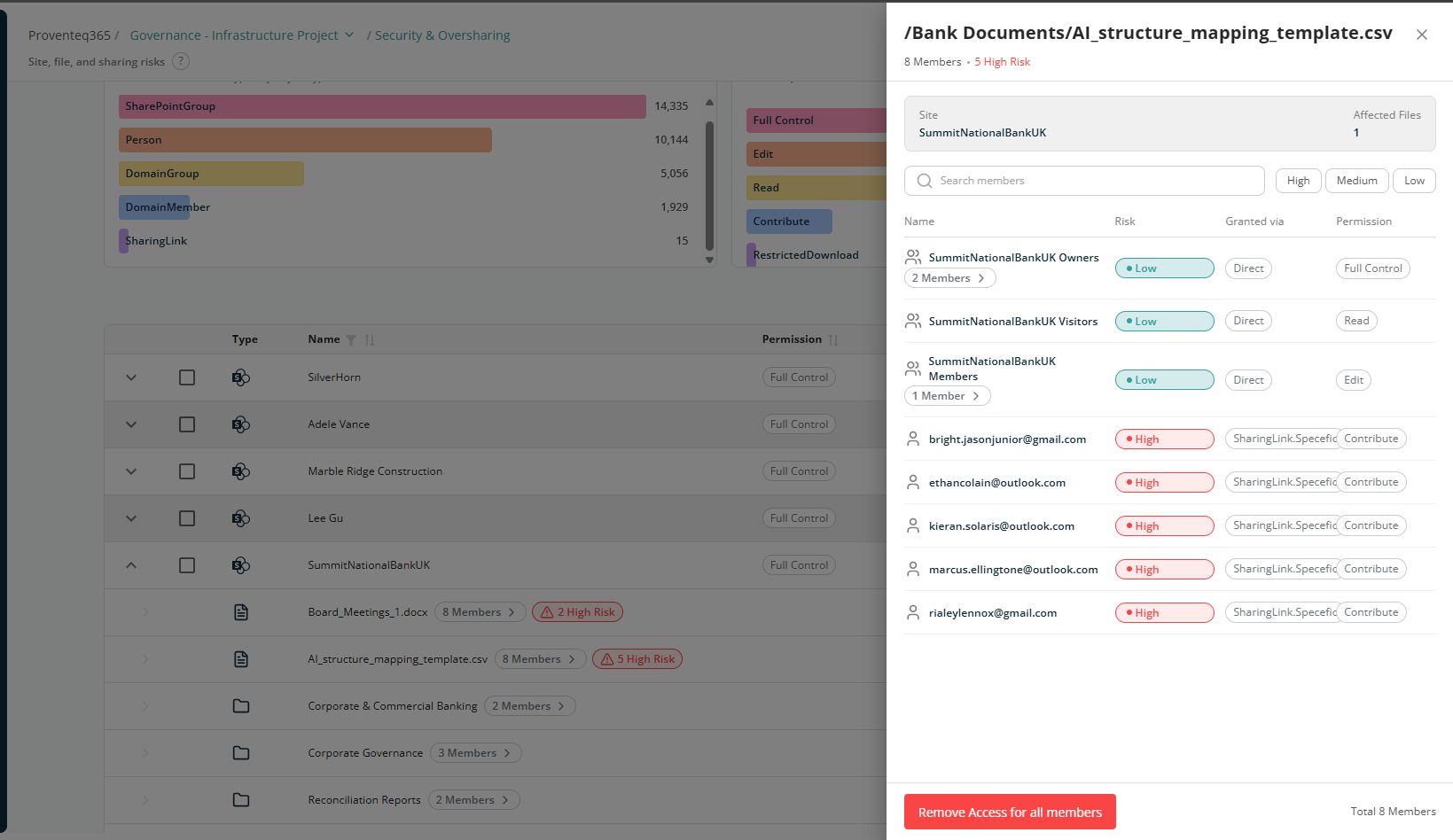
At the top of the panel:
- Members — Total number of users and groups who currently have access to the file. Example: 8 Members
- Risk Indicator — How many of those members are considered High Risk. Example: 5 High Risk
- Site — The SharePoint site where the file is stored. Example: SummitNationalBankUK
- Affected Files — How many files are impacted by the listed permissions.
The main section lists all users and groups who have access to the selected file.
- Name — The user, group, or email address that has access. Groups (such as Owners, Members, or Visitors) can be expanded to see how many users they contain.
- Risk — Risk is highlighted with colour indicators:
- Low — Typically internal users or standard SharePoint groups.
- High — Usually external users or access granted via sharing links.
- Granted Via — How access was provided, e.g. Direct, SharingLink.Specific.
- Permission — The level of access, e.g. Full Control, Edit, Read, Contribute.
At the bottom of the panel, the Remove Access for all members action revokes access for every listed user and group.
Note: Permission risk in the reports is categorised based on how the documents are being shared with different users. For more information, see Severity Allocations.