Workspace Inventory
A consolidated view of workspace content and scanned data, including site/Onedrive/Teams counts, risk summaries, and storage insights.
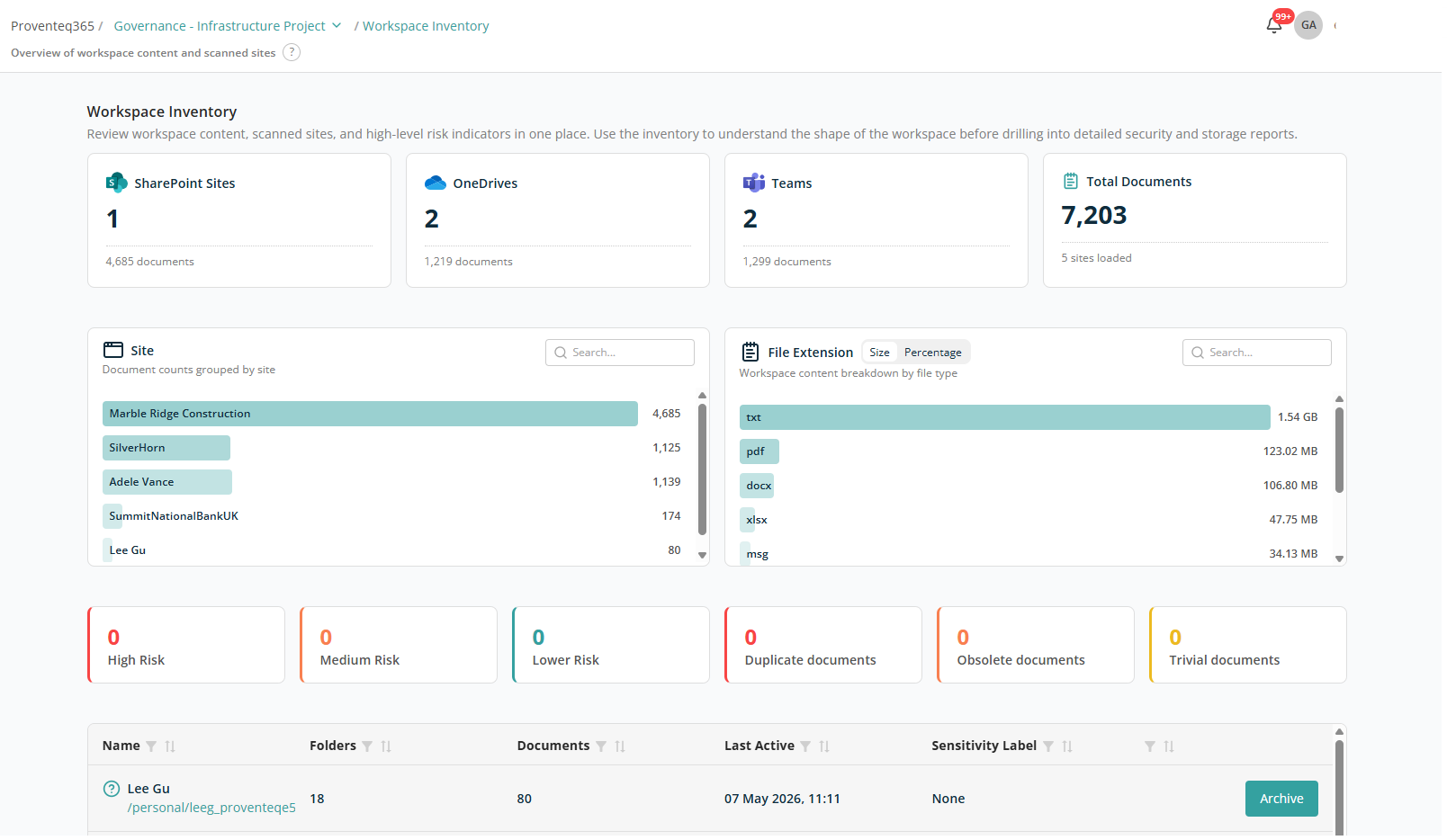
The Workspace Inventory screen provides a consolidated view of workspace content and scanned data. It helps you understand the overall structure, size, and risk posture of the workspace before reviewing detailed security or storage reports.
Overview Cards
At the top of the screen, summary cards provide a snapshot of scanned content:
- SharePoint Sites — Number of SharePoint sites included in the workspace along with document counts.
- OneDrives — Number of OneDrive accounts analysed along with document counts.
- Teams — Number of Microsoft Teams included along with document counts.
- Total Documents — Total number of documents scanned across the workspace, along with the number of sites from which data was loaded.
These metrics reflect the current scan results for the workspace.
Content Distribution
Sites
Shows the number of documents grouped by site. Helps you identify where content is concentrated across the workspace.
File Extension
Displays document distribution by file type, helping you understand which formats consume the most storage or are most prevalent. You can toggle between:
- Size — Storage consumed by each file type.
- Percentage — Storage consumed by each file type, as a percentage.
Both sections include a search box to filter data as needed. Filtering happens live as you type.
Risk Summary
The risk cards provide a quick assessment of document risk levels:
- High Risk — Documents with significant governance or security concerns.
- Medium Risk — Documents requiring attention.
- Lower Risk — Documents with minimal risk.
These indicators help prioritise further review.
Storage Insights
The storage insight cards highlight optimisation opportunities:
- Duplicate documents — Documents with identical content.
- Obsolete documents — Documents that may no longer be required, identified based on the analysis configuration criteria.
- Trivial documents — Low-value or insignificant documents, identified based on the analysis configuration criteria.
All these cards are interactive — click any card to drill down into the detailed report.
Site-Level Table
Below the summary cards, a table displays site-level information for all sites or OneDrive accounts included in the scan. Each row corresponds to an individual site and provides:
- Site Name — Name of the site or OneDrive included in the workspace scope.
- Site URL — URL of the site or OneDrive included in the workspace scope.
- Folders — Number of folders within the site.
- Documents — Number of documents within the site.
- Last Accessed — Most recent access date for the site.
- Sensitivity Label — The sensitivity label applied to the site, if any. If none is applied, the column shows None.
Each row has an Archive button to archive content using the M365 Archive service.
Note: To archive content with the M365 Archive service, the feature must be enabled at the tenant level. For more information, see Overview of Microsoft 365 Archive.
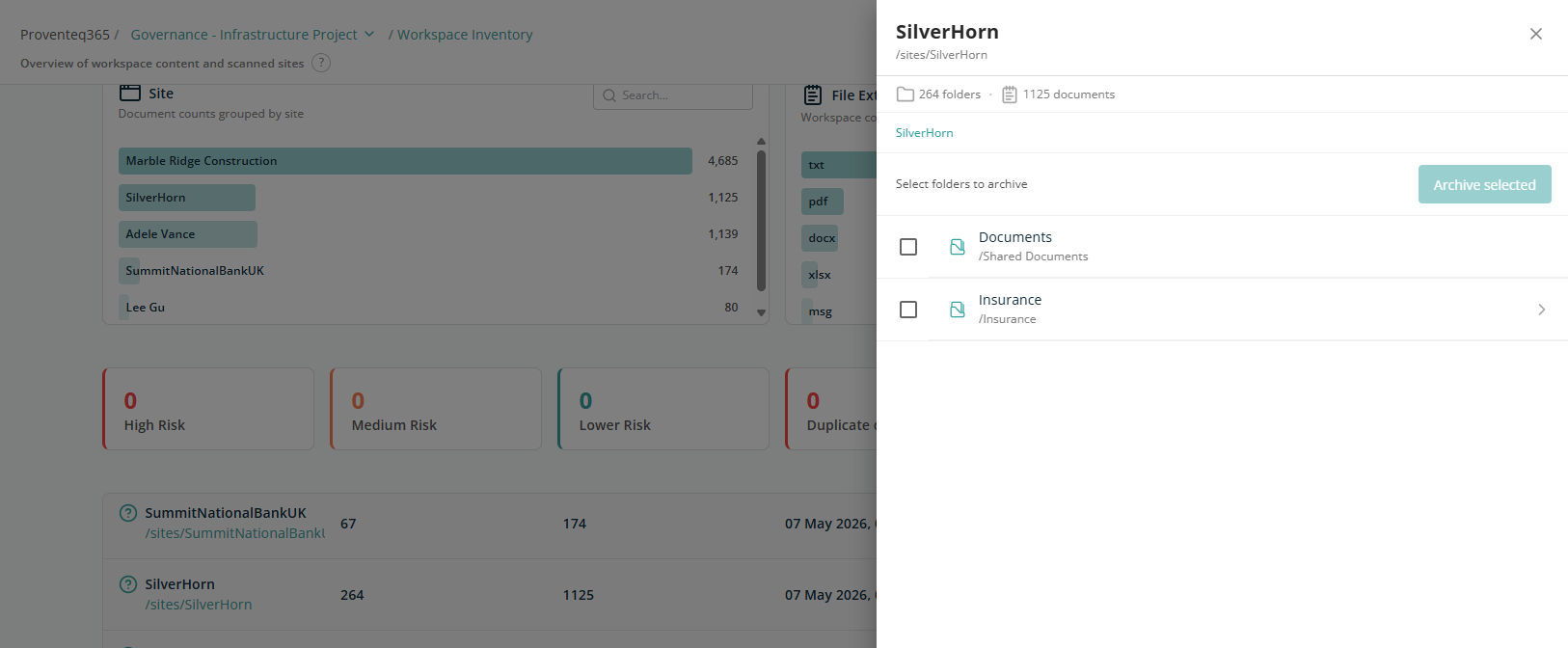
Clicking on any site or OneDrive name opens a side panel with details of documents and libraries, including the ability to archive individual libraries.